Buzzbox 3 · Setup guide
Get your sign
buzzing
Four things to do: wire it in, set the channels in your browser, pair the remote, and use it. About ten minutes on the bench. You don't need an app or an account for any of it.
01
Connect
your Buzzbox
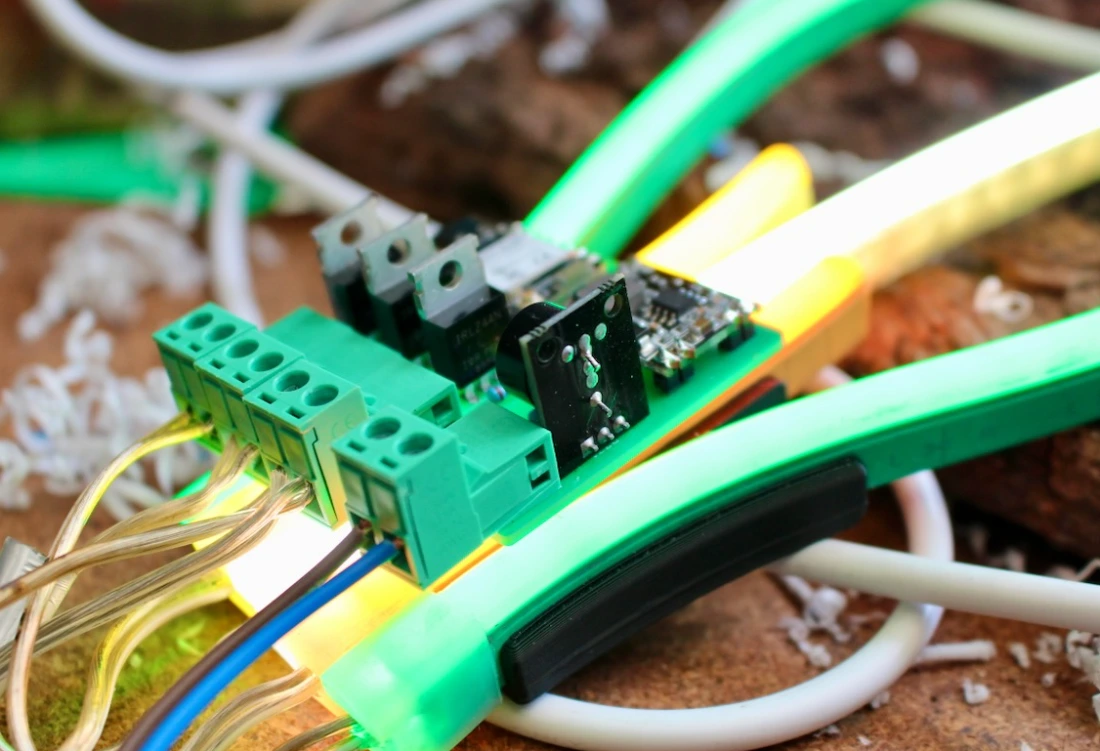
- 01Fit the supplied connectors to your neon runs and to the driver. Positive on the left.
- 02Plug the neon runs into the Buzzbox — channels 1, 2 and 3, left to right.
- 03Plug the driver into the fourth socket, set apart on the right. Your neon lights up.
02
Configure your Buzzbox
- 01Switch the driver off, on, off and on again inside two seconds. The Buzzbox drops into wi-fi setup mode and sounds a double ding-dong chime.
- 02On your phone, join the wi-fi network Buzzbox. The password is neonsetup.
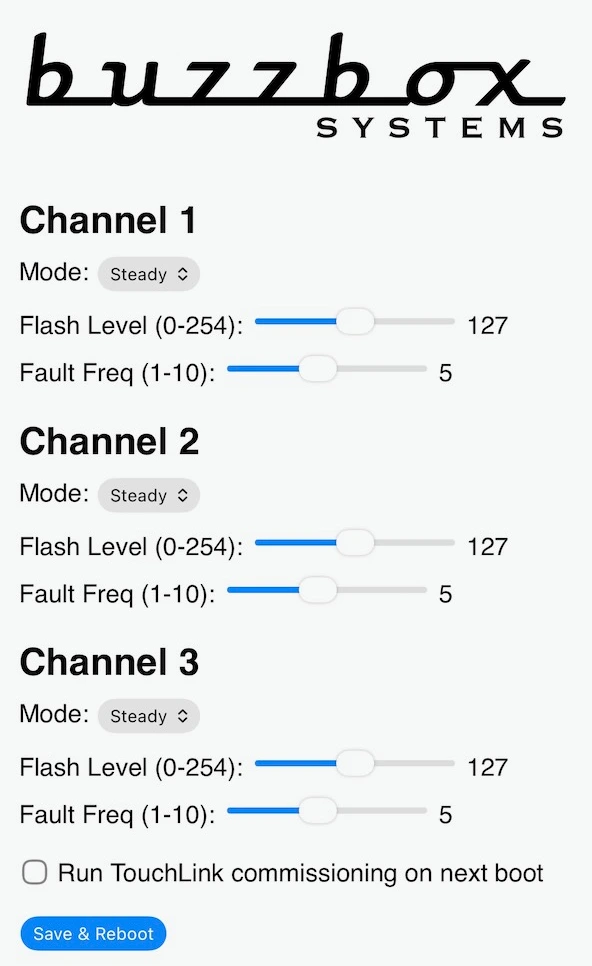
- 03Open Safari or Chrome and go to 192.168.4.1.
- 04Set Mode, Flash Rate (flashes per second) and Flicker Rate (0–10, low is a lazy tube and high is a bad one) on each channel. Set the rates even on channels you're not flashing yet: the remote switches modes later, but it can't change a rate.
- 05Pairing a Hue remote? Tick Run TouchLink commissioning on next boot.
- 06Tap Save & Reboot.
03
Pair
your remote
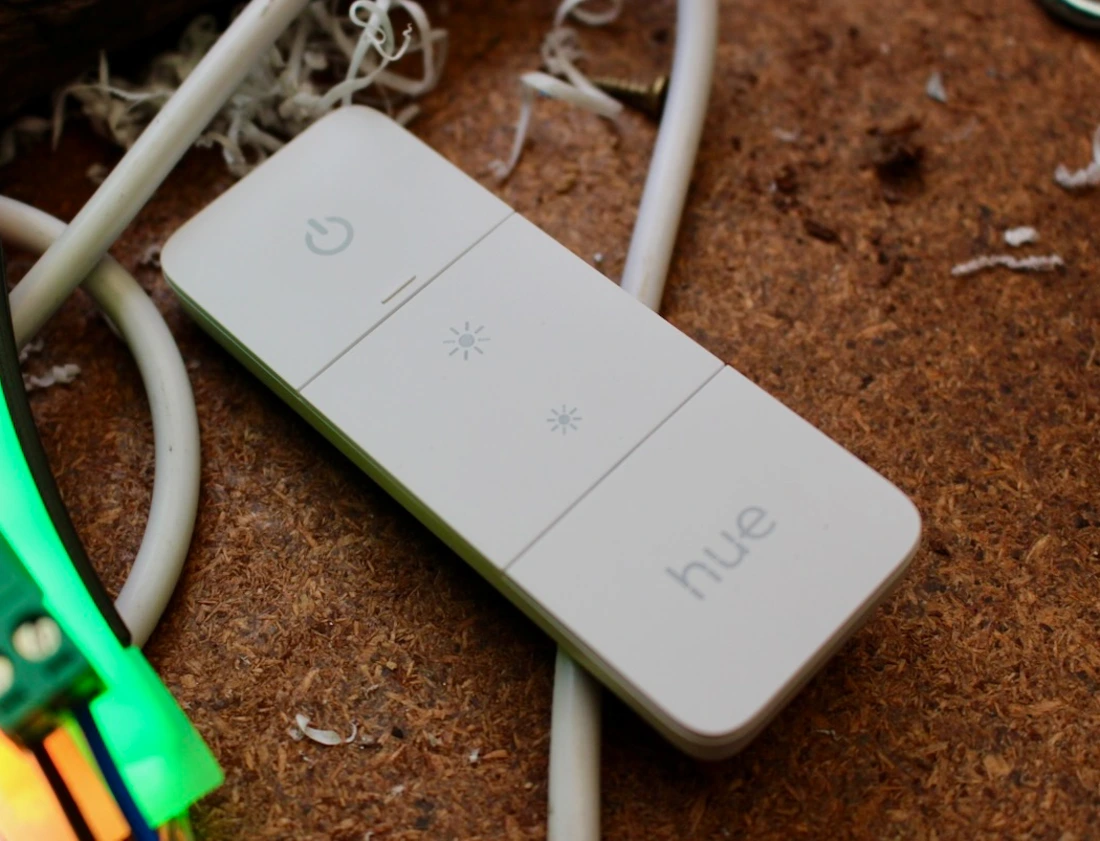
- 01Tick Run TouchLink commissioning on next boot and reboot, if you haven't already.
- 02Hold the remote against the Buzzbox. Press and hold its top button until the indicator LED runs quickly through colours.
- 03A fanfare chime from the Buzzbox means the remote is paired.
04
use
your remote
Normal operation
Press the top button to switch the whole Buzzbox on and off. That's the whole thing.
Active channel mode
Change the mode of a single channel from the wall.
- 01Press and hold the second button. An upward arpeggio sounds and channel 1 flashes rapidly — that's the channel you're holding.
- 02Press the top button to cycle that channel through its modes.
- 03Press the second button to move on to the next channel. Whichever channel is flashing rapidly is the one you're holding.
05
Home Assistant
Home Assistant unlocks the rest of the Buzzbox. Write automations to schedule on, off, mode and rate changes, or tie a sign to a sensor or another device. Running more than one Buzzbox at a site? Control all of them from your phone with the companion app.
home-assistant.io
home-assistant.io
You'll need
- Home Assistant device
- Zigbee coordinator
- ZHA integration
- Buzzbox Zigbee quirk